Zapier Integration
What it is
The Zapier integration connects thanks.io to 8,000+ apps with no coding required. Set up a "Zap" with a trigger (something that happens in another app) and an action (send mail via thanks.io). Popular connections: HubSpot, Salesforce, Google Sheets, Typeform.
How to use it
- In your thanks.io dashboard, click Integrations & API in the sidebar.
- Find the Zapier card and click Connect, pick one of the Popular Zapier Templates further down the page, or go to zapier.com and search for thanks.io.
- Choose a pre-built Zap template or click Make a Zap to build from scratch.
- Select your trigger app and event (e.g., HubSpot New Contact).
- Add a thanks.io Action step and authorize thanks.io in Zapier.
- Map your trigger data to thanks.io recipient fields (name, address, city, state, ZIP).
- Choose the design (see Choose the design below).
- For a PDF-based letter, map a publicly accessible PDF URL or Google Drive PDF sharing link to the PDF field.
- Click Test & Review, then turn on the Zap.
Choose the design
Your designs live in Creatives in the thanks.io sidebar. Each creative is a front and a message saved together, and each one has an image template (its front) and a message template (its message) underneath.
- Image and message templates. Pick or enter an Image Template and a Message Template in the action step. To find them, open a creative's menu in Creatives and choose Preview: it shows the creative's image template ID and message template ID, each with a copy button. See Finding template IDs. If the step names no template, thanks.io uses your default front and message for that mailer type (set with Make default on a creative card; see Creative defaults and sharing).
- A creative ID. The send action accepts a creative ID. Copy it from the creative's menu in Creatives (Copy creative ID), or from its Preview. If your Zap's thanks.io action shows a creative ID field, enter the ID there and the piece is sent exactly as the creative is saved. Leave the image template, message template, front image, message, and handwriting fields empty when you do: a send that combines a creative with any of them is rejected. A QR code URL (and, for letters, an additional pages URL) can still be added. Only creatives that are ready to send can be sent this way.
If your action step doesn't show a creative ID field, use the image and message template fields.
Tips & best practices
- Use a Filter step before the thanks.io action to skip contacts with incomplete addresses or who are already in your Suppression List.
- Turn on Test Mode under Settings → API Access while testing so no real mail ships.
- Add a Delay step for sends you want to happen a few days after the trigger.
- Use Zapier's Formatter step to clean up address data before passing it to thanks.io.
Limits & gotchas
- Zapier's free plan limits the number of Zap runs per month. High-volume use cases may require a paid Zapier plan.
- Each Zap run sends to a single recipient - for bulk sends, use the thanks.io mailing list API.
- Test Mode cancels orders, but it cannot cancel a lead purchase: a Radius Search bought from a Zap is charged for as usual, and is limited to 5 records per purchase while test mode is on. Turn test mode off before buying a full list.
Get Notified on QR Scan
You can leverage Zapier to notify you when someone scans a postcard using thanks.io's QR Code Scan trigger in Zapier.
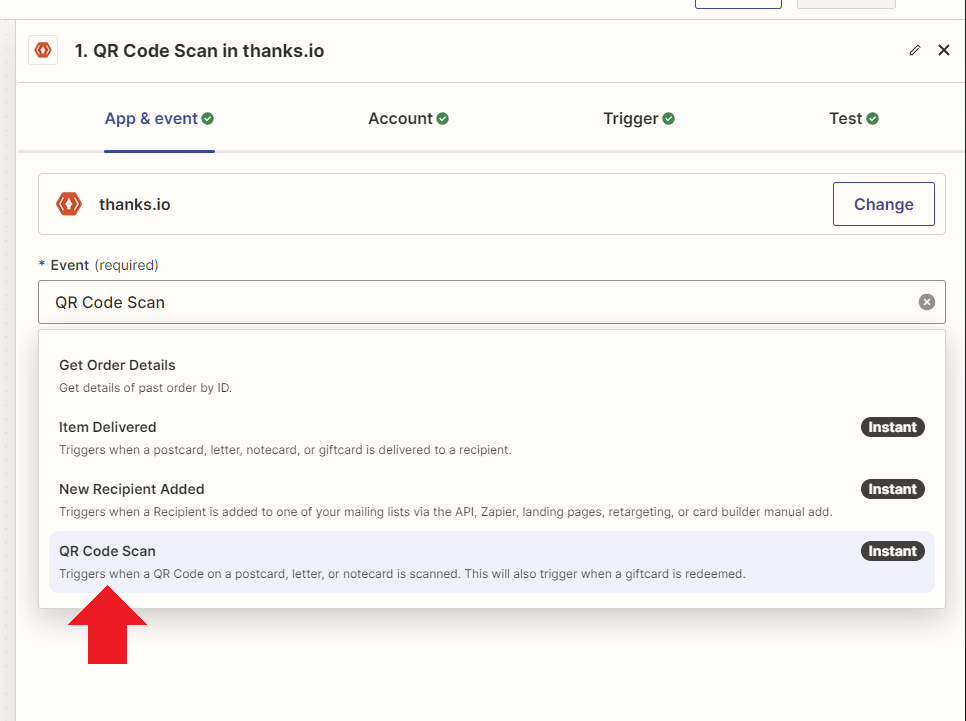
We will provide you with all of the data that pertains to the mailers as we know it, so you can update your CRM or system.
Tip: Save emails and phone numbers in your thanks.io mailing lists to make it easy to use client lookup functions/searches in your Zaps.
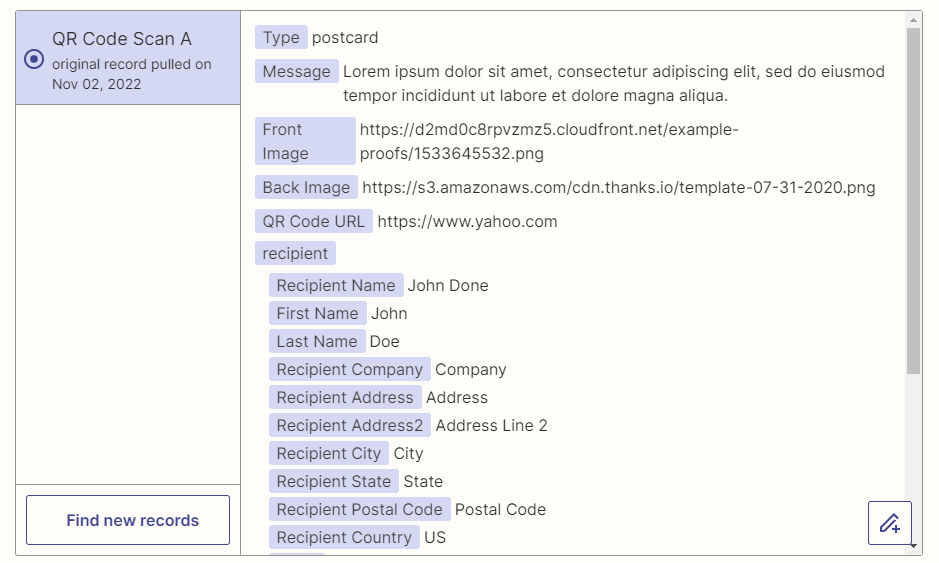
Example Zap: Create a Follow-up Task from a QR Scan
The most common and important notification type is to perform a follow-up. When you are sending mail that you want people to scan, when they do take that action you'll want to contact them to follow up and ensure they got what they wanted from your QR code. Creating a task in your CRM or system to do just that is easy with this automation.
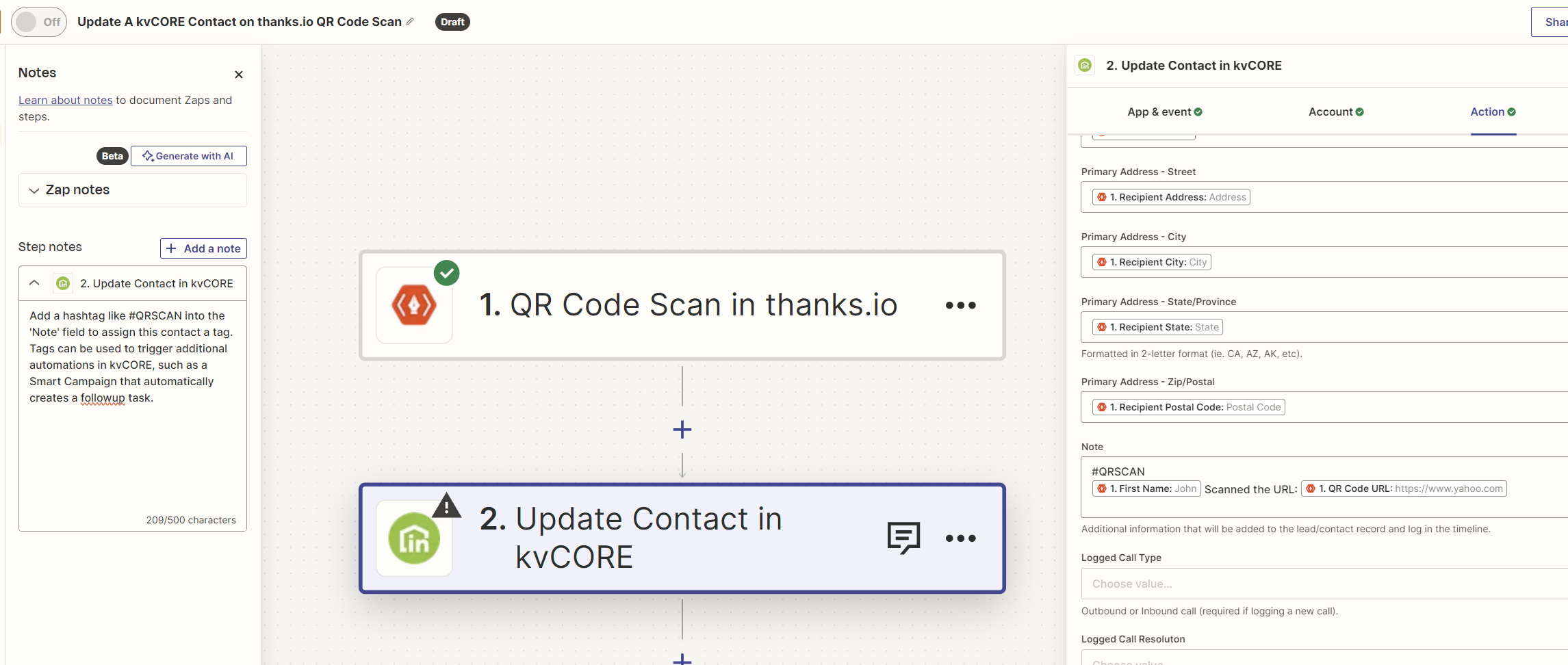
Follow the links below to create your own version now.