Monday.com Integration
You can connect Monday.com with thanks.io using a Mailing List Sync. When contacts in your Monday.com board are updated, they are automatically added to a thanks.io mailing list. You can then use thanks.io Campaigns to automatically send mail to that list.
Setup
- In the thanks.io dashboard, click Integrations & API in the sidebar.
-
Click Connect on the Monday.com tile.
-
Click Install.
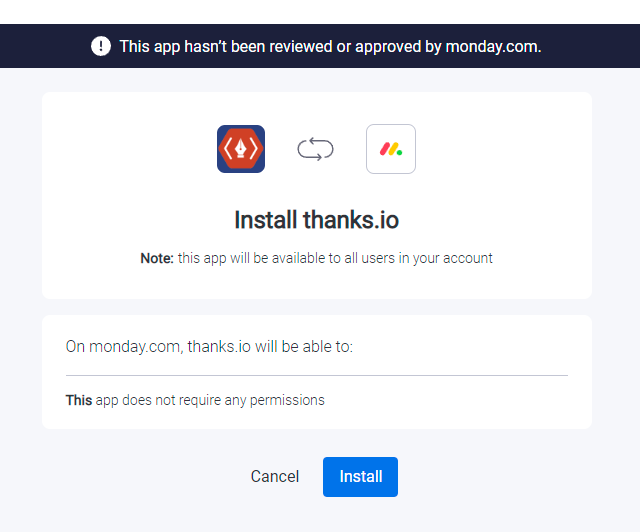
- Once installed, thanks.io will appear in your Monday.com apps.
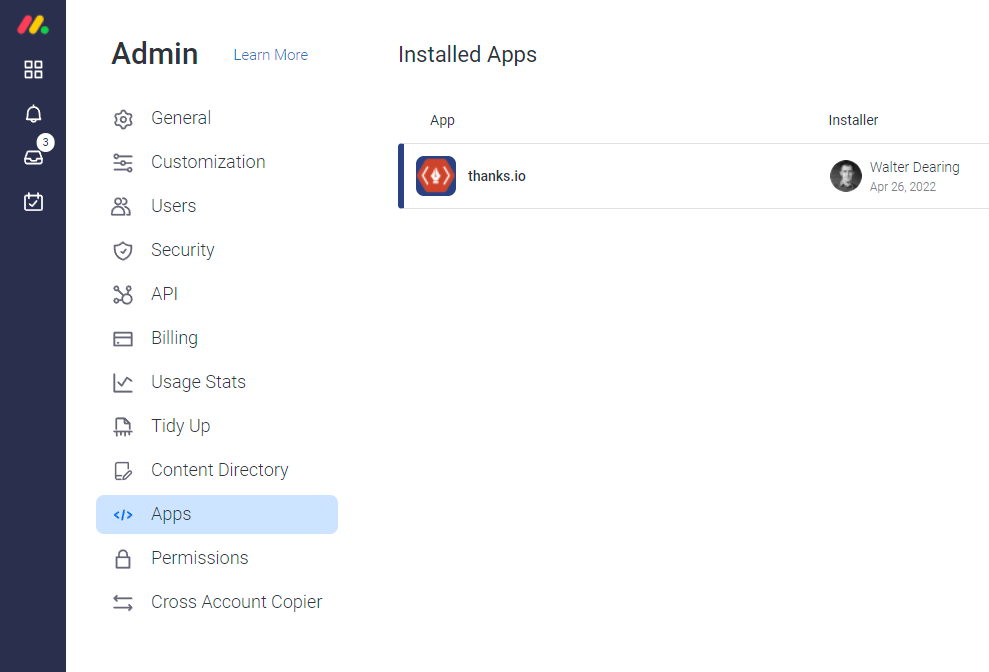
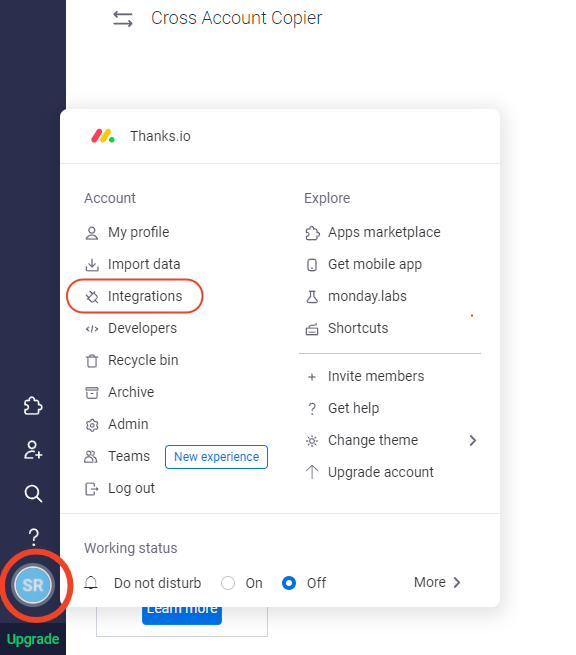
- Open your main menu from the bottom-left corner of your Monday.com dashboard and select Integrations.
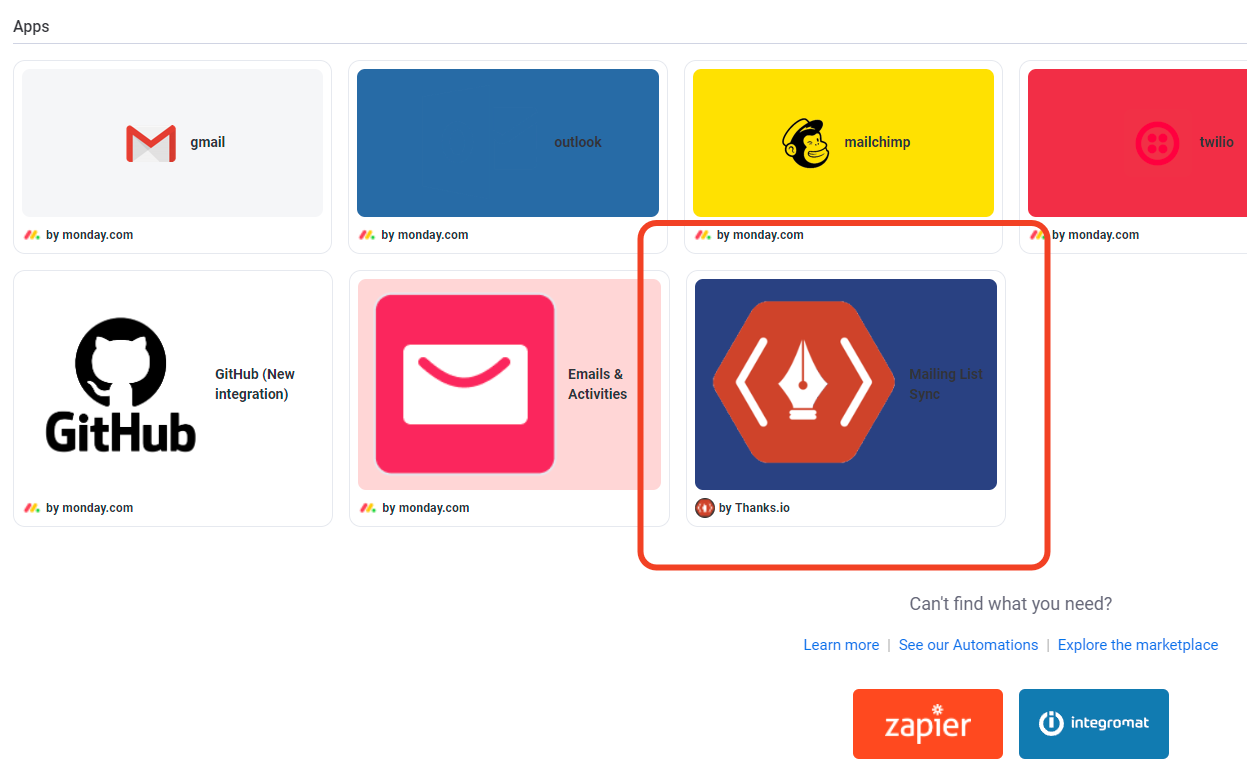
- Choose Mailing List Sync.
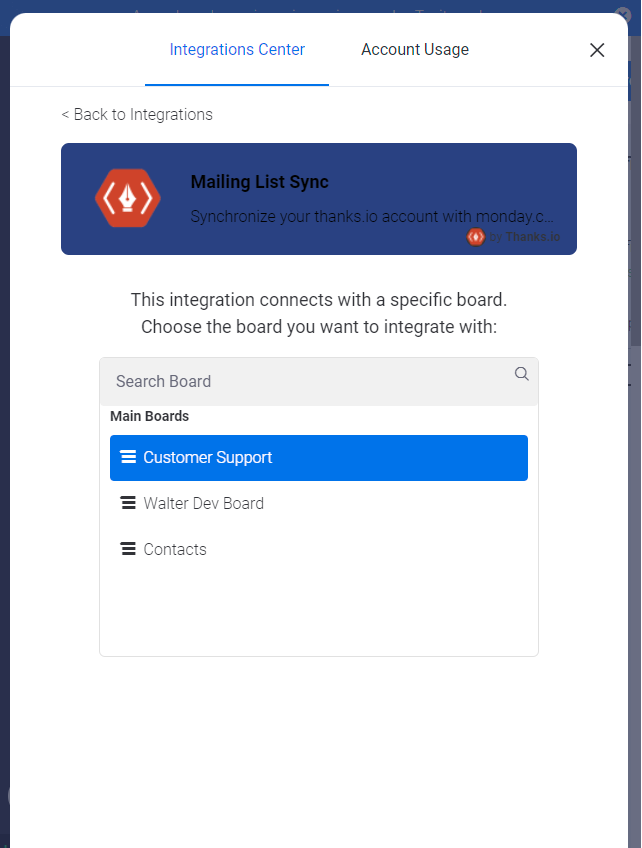
- Select which Monday.com board you want to send contacts from.
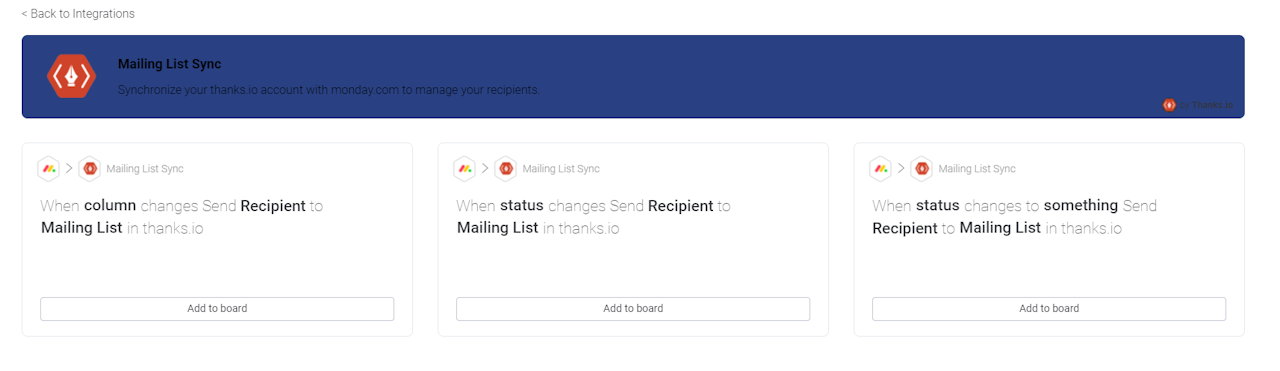
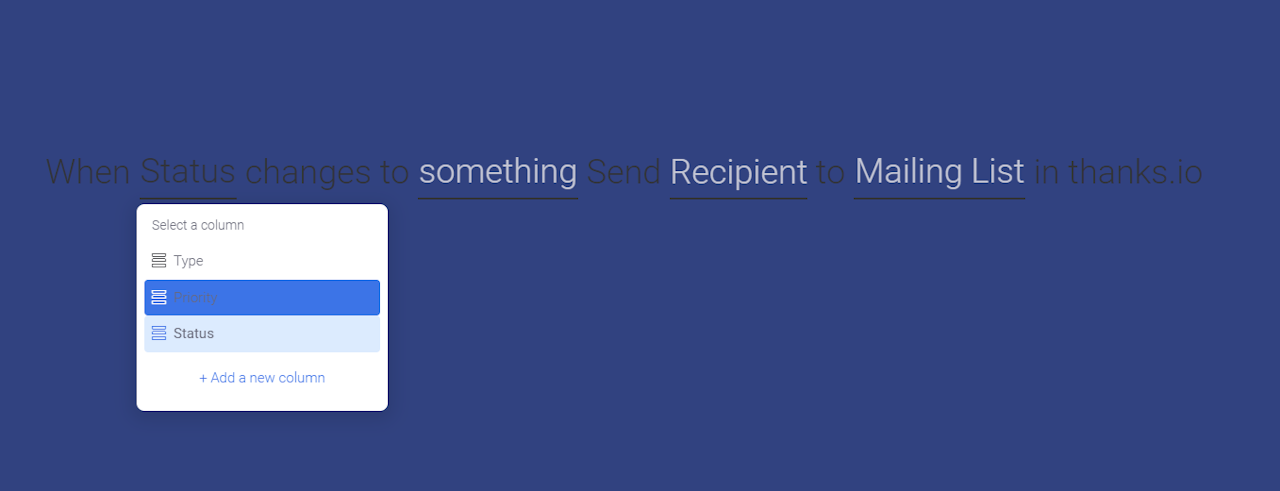
- Choose what type of update to a contact in Monday.com should trigger that contact to be synced to a thanks.io mailing list. You can use a general column or status update, or set a specific status value as the trigger.
-
Set the specific values for the sync trigger by clicking each white link to select a value.
When configuring Recipient, match your Monday.com fields to the available fields in thanks.io. Be sure to set at least a name and a complete mailing address. The custom fields (Custom 1 and Custom 2) are mail merge fields you can use in a creative's message or a Street View dynamic front.
- Click Add to board at the bottom right.

-
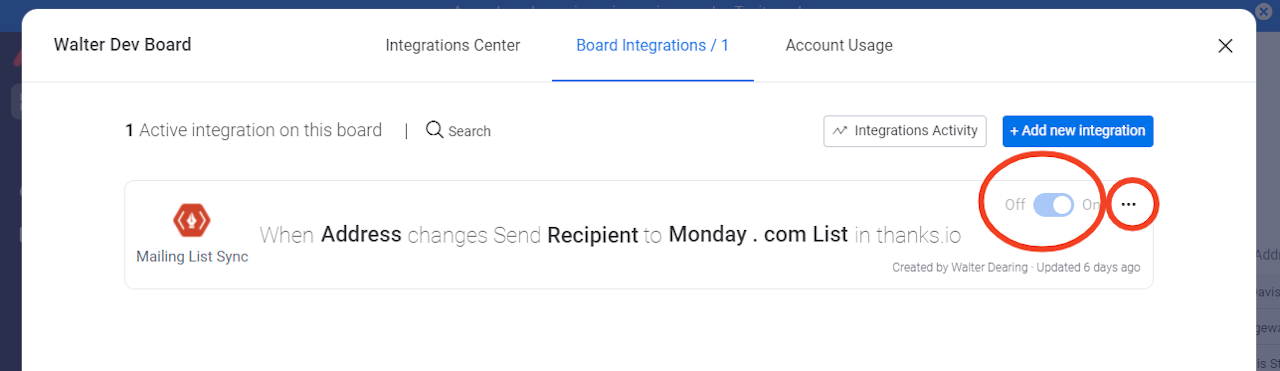
Your integration configuration will appear in the integrations interface. You can turn the integration on or off as needed.
Test it by setting it to On, then update a contact in your board to match the trigger conditions. The sync should happen almost instantly.
Integrations log
To view the history of your integrations, click Integrations in the upper right of any Monday.com board.
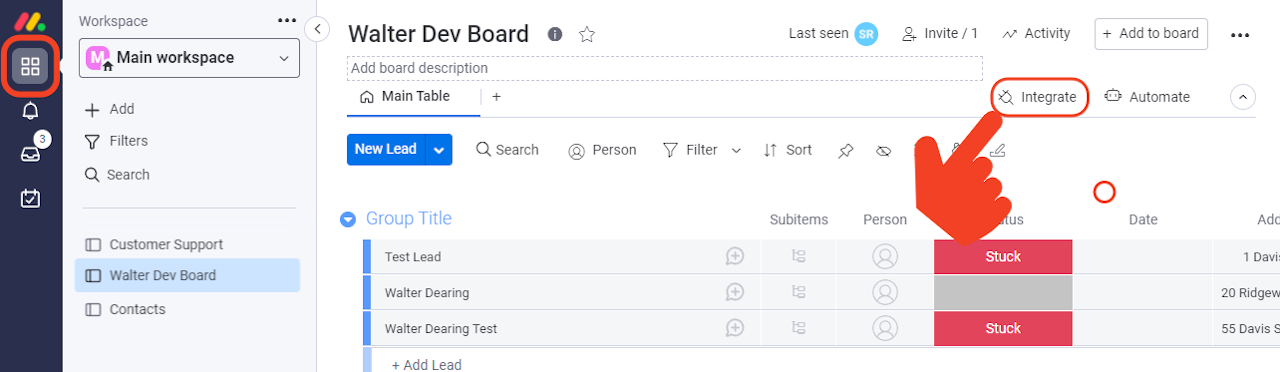
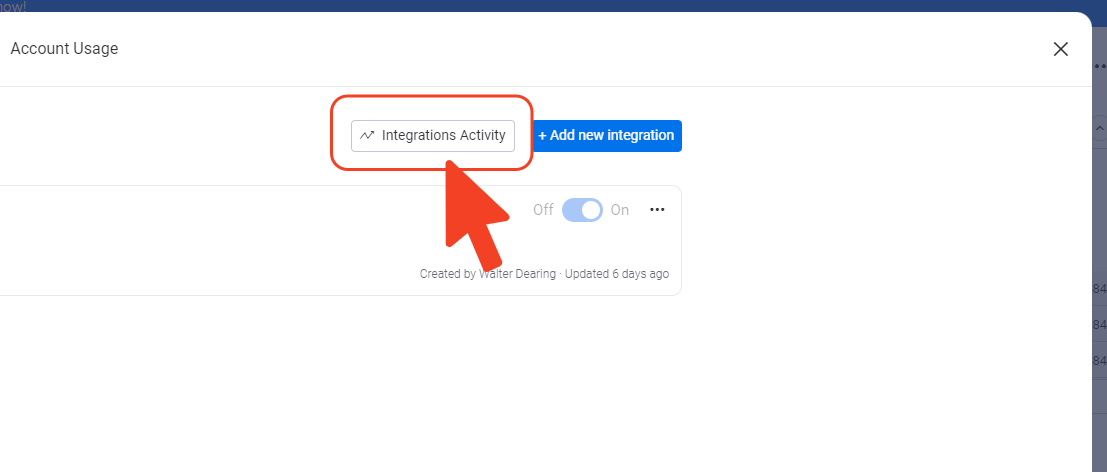
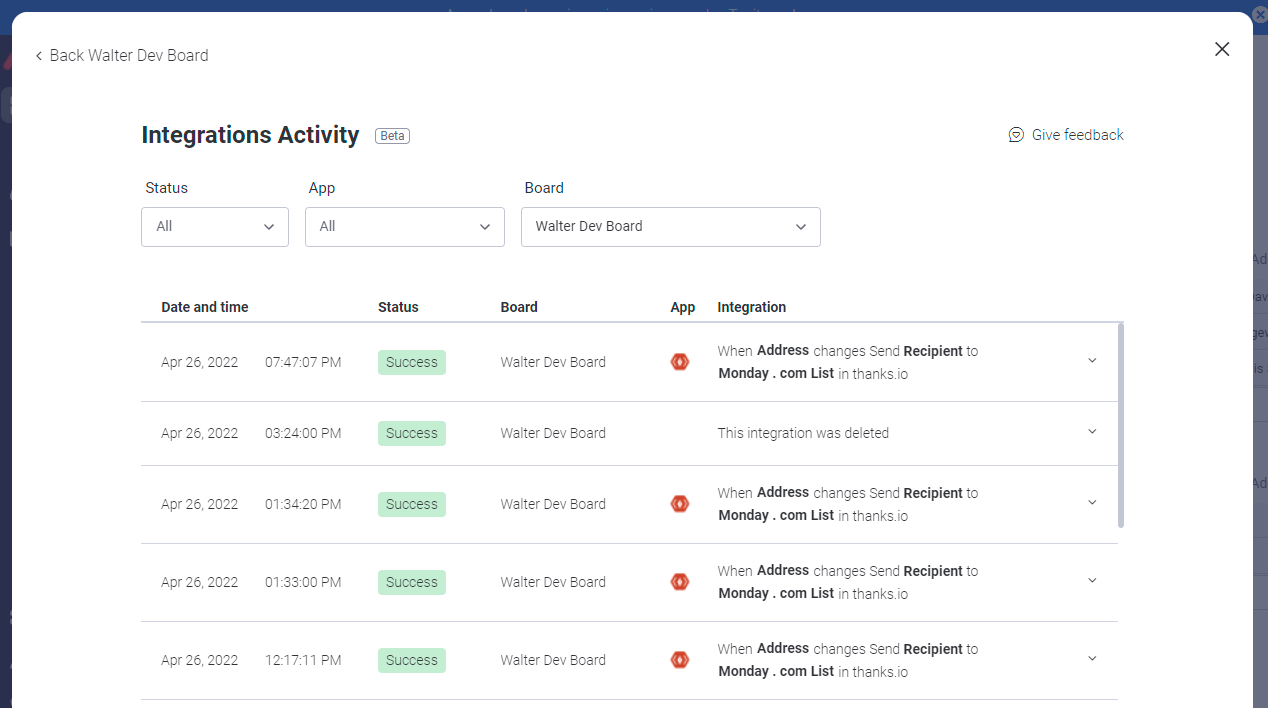
From there, click Integrations Activity to see what has been running - or not running. This is useful for troubleshooting your automations and syncs.