.png?width=180&height=52&name=image%20(1).png)
How to Send Mail Using the Card Builder (Thanks.io)
Sending a card shouldn’t feel like assembling IKEA furniture without instructions, so here’s the simple path from start to send:
1. Start Your Mailer
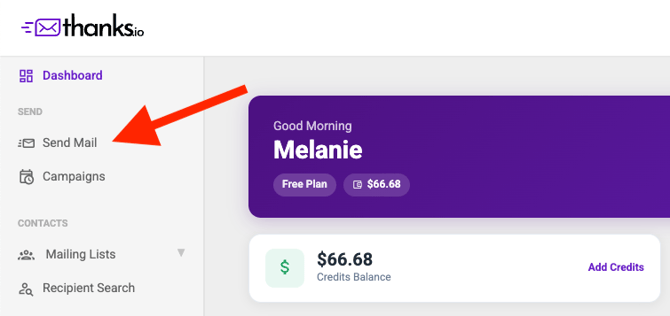
From your dashboard, click “Send Mail” on the left-hand side.
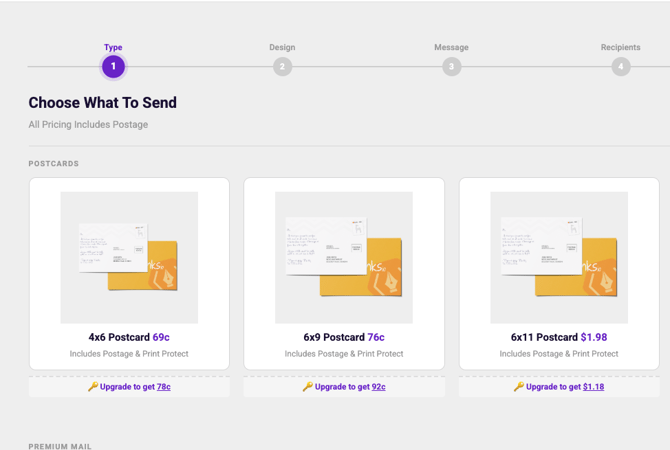
Then choose the type of mailer you’d like to send.
2. Design Your Card (Front/Image Side)
This is where the fun begins.
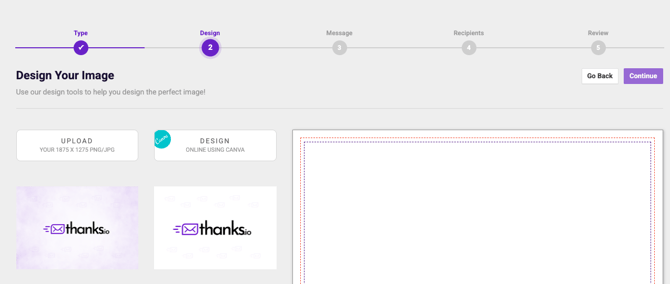
You have a few options:
- Upload your own design
- Design online using Canva
- Choose from a saved template
Once your design is ready, click Continue.
3. Customize Your Message
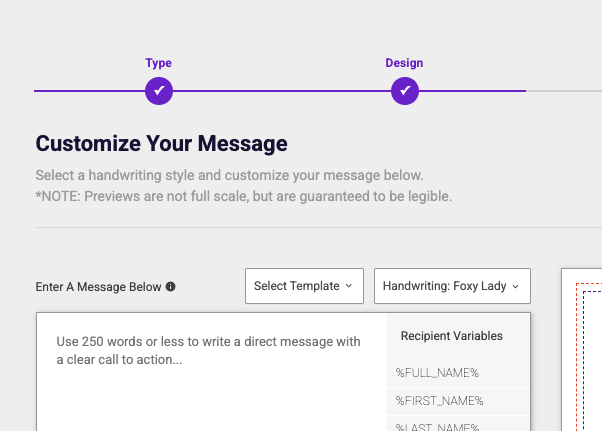
Now it’s time to add your words (or let tech lend a hand).
You can:
- Write a new message
- Select a saved message
- Use AI to generate one
Optional extras:
- Add a QR code
- Change the background style
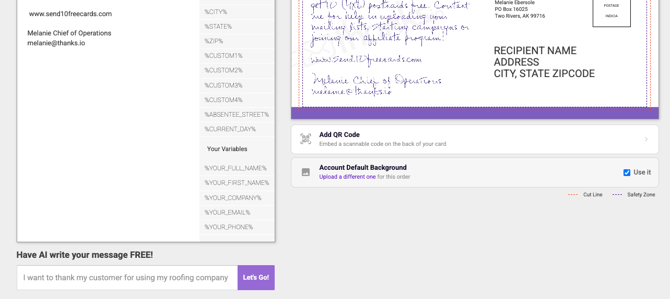
When everything looks right, click Continue.
4. Select Your Recipients
Choose how you want to build your mailing list:
- Add a contact manually
- Use a radius search for a small fee
- Upload a CSV file
- Select an existing mailing list
Pro tip: We recommend uploading your CSV before starting the card builder to keep things smooth and simple.
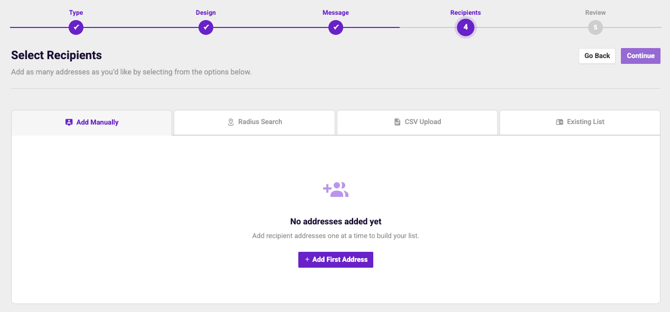
After selecting your recipients, click Continue.
5. Review & Send
Before sending, you’ll see a pop-up asking if you want to add “or current resident” to your mailers.
- This can help improve delivery rates
- Choose Yes or No based on your preference
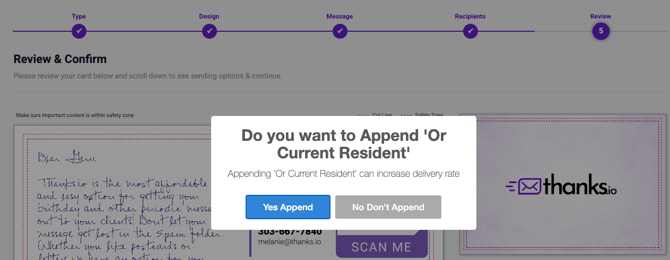
Then:
- Review your card
- Check the total cost
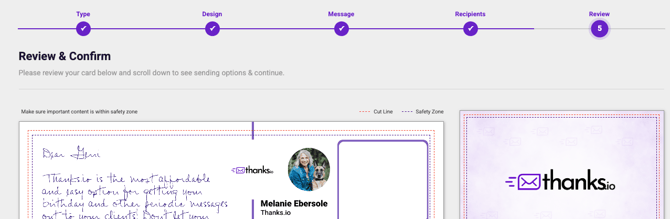
When everything looks good, click Submit Order & Send Now.
6. Cancellation Window (Important)
After submitting your order, you have a one-hour window to cancel if needed. You can find the cancel button the dashboard under orders.
After that:
- Orders are sent to the printer
- And become non-refundable
So take a quick moment during the review step to make sure everything looks just right—future you will thank you.
That’s it! Your mail is sent, story delivered.
A few clicks, a little creativity, and your message is out in the world, no need to stand in the post office line!