.png?width=180&height=52&name=image%20(1).png)
Create an Image Template Using Canva
You can easily create custom image templates for your mailers by designing them in Canva and importing them into thanks.io.
- Sign in to Canva
Log in to your existing Canva account or create a new one at
👉 https://www.canva.com/ -
Open Image Templates in thanks.io
In thanks.io, navigate to Creatives → Image Templates.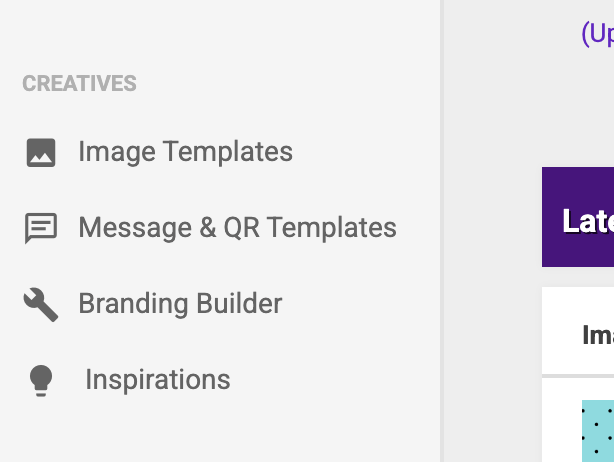
-
Choose a mailer type
Locate the mailer type you want to design (Postcard, Letter, etc.), then click Design in Canva. This will open Canva with the exact dimensions needed for that mailer type.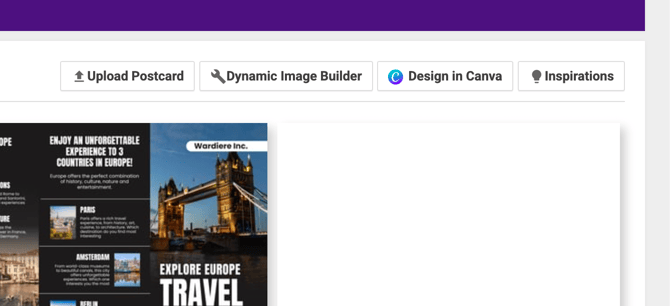
-
Authorize Canva
When prompted, authorize Canva to connect with your thanks.io account.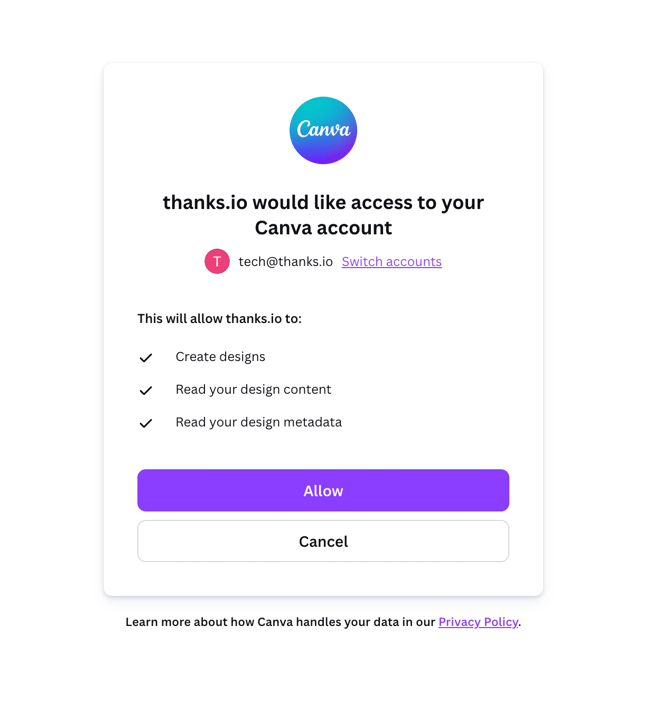
-
Design your template
Use Canva’s example designs as a starting point, then customize the layout, images, and text to match your brand. Use the left-hand Templates panel to explore pre-designed layouts that fit your mailer type. -
Import your design into thanks.io
Important: When your design is finished, click Return to thanks.io.
This will automatically import your design as an image template in thanks.io.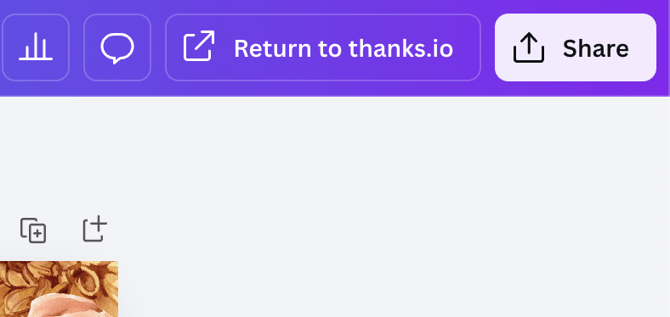
Edit an Existing Canva Image Template
You can make updates to any image template that was originally created in Canva directly from thanks.io.
-
Open Image Templates in thanks.io
Navigate to Creatives → Image Templates. -
Find a Canva-enabled template
Hover over any image template that displays the Canva badge. -
Open the template in Canva
Click the Canva icon to launch the design in Canva. -
Edit your design
Make any changes you’d like to the layout, text, images, or branding. -
Sync changes back to thanks.io
Important: When you’re finished, click Return to thanks.io.
This will sync your updates to the corresponding image template in thanks.io.