.png?width=180&height=52&name=image%20(1).png)
How to Create a QR Code in a Message Template
You can easily add a QR code to any message template in Thanks.io. This allows you to reuse the same QR code across multiple campaigns without needing to re-enter the URL each time.
Step-by-Step Instructions
- Go to the Message & QR Template Editor
- Click to create a new template or edit an existing one
- Enter your message content
- Scroll down to the QR Code URL section
- Enter the URL you want recipients to visit
- Save your template
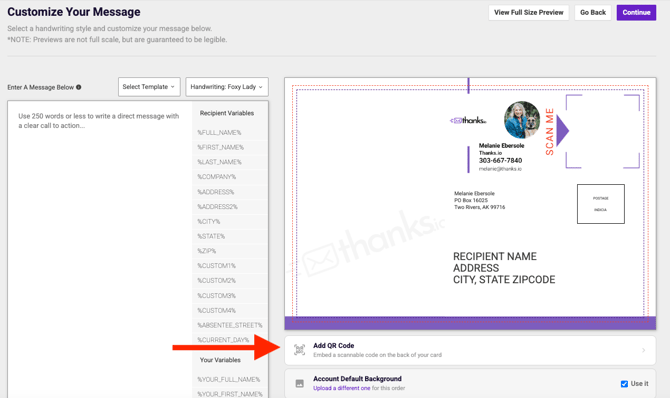
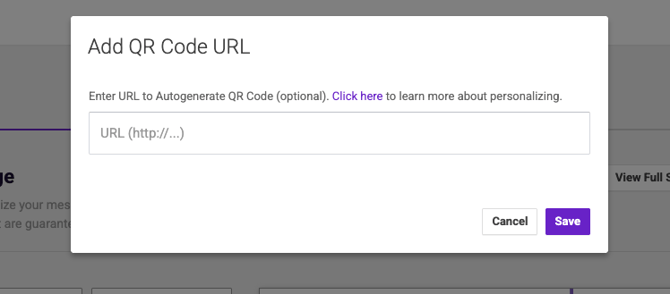
Once saved, a QR code will automatically be generated and printed on your mailers when this template is used.
Optional: Use the Default Landing Page
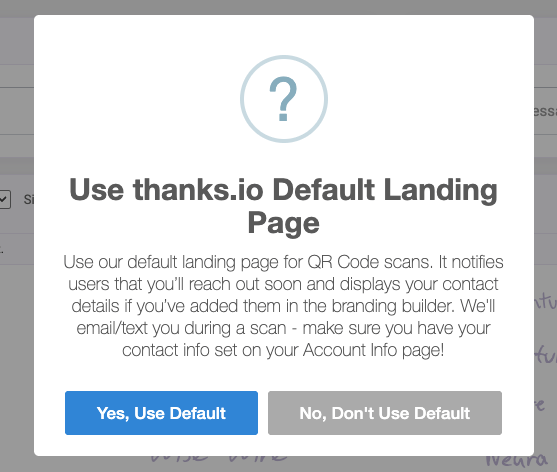
Instead of entering your own URL, you can click “Use Default” to use Thanks.io’s built-in landing page.
When selected, the default page will:
- Notify you when someone scans the QR code
- Display your contact information (from your account settings)
- Let the recipient know you’ll be reaching out
Important:
Make sure your contact details are up to date in your Account Info settings so recipients see the correct information.
Best Practices
- Use a dedicated landing page for better results and tracking
- Make sure your page is mobile-friendly
- Match your QR code destination to the message on your mailer
⚠️ Quick Tip
QR codes must link to a valid URL (website link) to work properly.
- ✅ Good:
https://yourwebsite.com - ✅ Good:
https://bookingpage.com/schedule - ❌ Not recommended: phone numbers or plain text
If you want recipients to call or text you, send them to a simple landing page with your contact details and a clear next step.