.png?width=180&height=52&name=image%20(1).png)
How Do QR Codes Work?
QR codes on Thanks.io are generated automatically for each recipient. You simply provide the destination URL, and we print a scannable QR code on each mail piece for you.
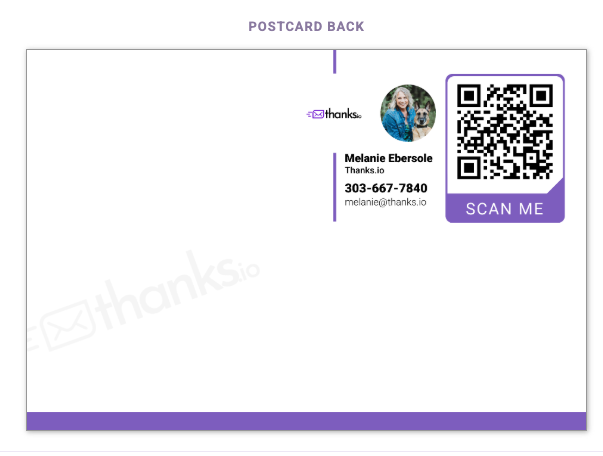
Each QR code is unique to that recipient, allowing you to track scans and connect your direct mail directly to your digital marketing funnel.
Think of QR codes as the bridge between your mailbox and your marketing funnel.
Are QR Codes Like Magnets?
Not exactly.
Magnets are a physical add-on attached to certain products. QR codes are printed directly on the card or mailer and link the recipient to an online destination when scanned with their phone.
How It Works
- You create your mailer in Thanks.io
- You enter the URL you want people to visit
- We automatically generate and print a unique QR code for each recipient
- When someone scans the code, they are taken to your chosen landing page
What Should I Link To?
For the best results, your mailer should clearly encourage the recipient to scan the QR code, and the destination page should match what was promised.
Good QR code destinations include:
- Your website
- A landing page
- A coupon or special offer
- A product page
- A newsletter or market report sign-up
- A social media page or group
- An appointment booking page
- A lead form
Best Practices for Better Results
QR codes perform best when:
- The design makes the code easy to notice
- The messaging gives people a reason to scan
- The landing page is mobile-friendly
- The next step is clear and simple
Well-designed mailers using QR codes can see response rates similar to digital ads, often averaging around a 5–7% scan rate.
Notifications
Whenever a QR code is scanned, you’ll receive an email notification with details including:
- Which recipient scanned the code
- The URL they visited
- The order the mail piece was sent from
You can disable QR scan notifications at any time in your account settings.
Automation
When someone scans a QR code, you have multiple ways to take action.
Built-In (No Integration Required)
All QR code scans are automatically added to a mailing list in your account called:
“All QR Scans”
From there, you can:
- Segment and organize engaged contacts
- Add scanners to other mailing lists
- Trigger follow-up campaigns
- Use them for retargeting or future sends
Advanced Automation (Zapier)
If you use Zapier and have an automation set up, scan data can also be sent there to trigger additional workflows.
For example, you can:
- Add scanners as new leads in your CRM
- Update or re-categorize contacts based on engagement
- Send automated emails or text messages
- Trigger additional marketing campaigns
This allows you to turn a simple scan into a real-time marketing event.
Where Do I Add My QR Code URL?
There are a few easy ways to add a QR code URL in Thanks.io, depending on how you're sending your mail.
Option 1: During the Send Mail Process
If you're sending a mailer right away, you can add your QR code while creating your message.
- Start your campaign using the Send Mail flow
- Select your image template
- Choose or create your message
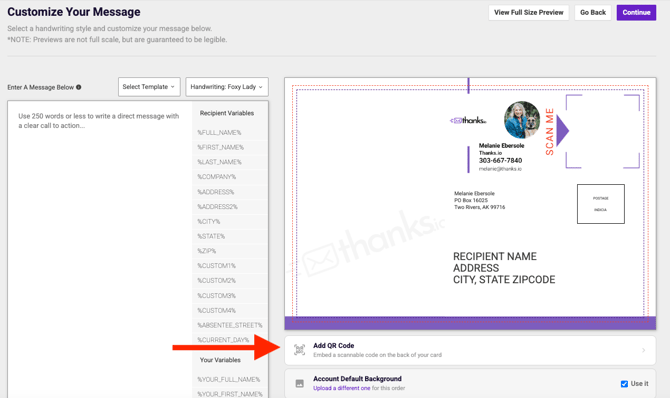
- In the message screen, look below the message box and click “Add QR Code”
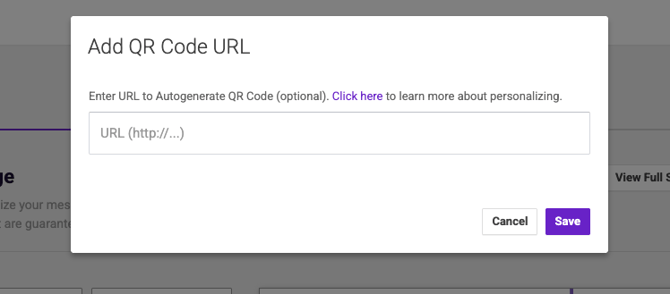
- Enter your URL in the pop-up window and click Save
You'll then get a pop up to enter URL
Once saved, your QR code will automatically be generated and printed on each mail piece.
Option 2: When Creating a Message Template
You can also add a QR code URL when creating or editing a reusable message template.
- Go to the Message & QR Template Editor
- Create a new template or edit an existing one
- Enter your message content
- Scroll to the QR Code URL section
- Enter your desired URL
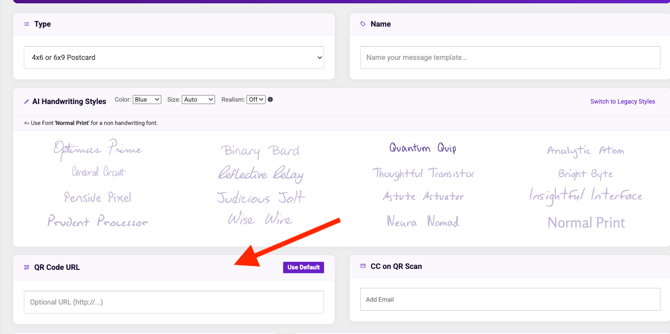
This is a great option if you plan to reuse the same QR code across multiple campaigns.
Using the Default Landing Page Option
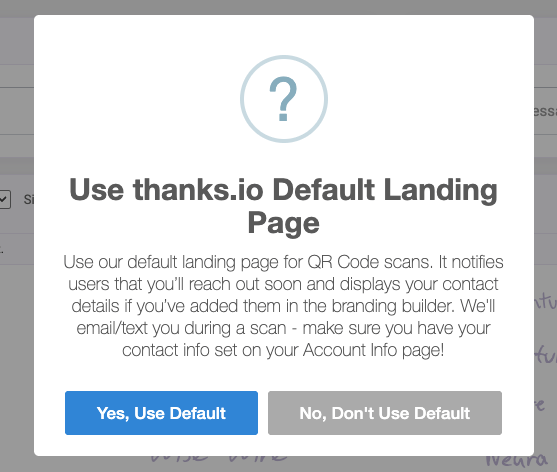
Instead of entering your own URL, you can click “Use Default” to use Thanks.io’s built-in landing page.
When selected, the default page will:
- Notify you when someone scans the QR code
- Display your contact information (from your account settings)
- Let the recipient know you’ll be reaching out
Important:
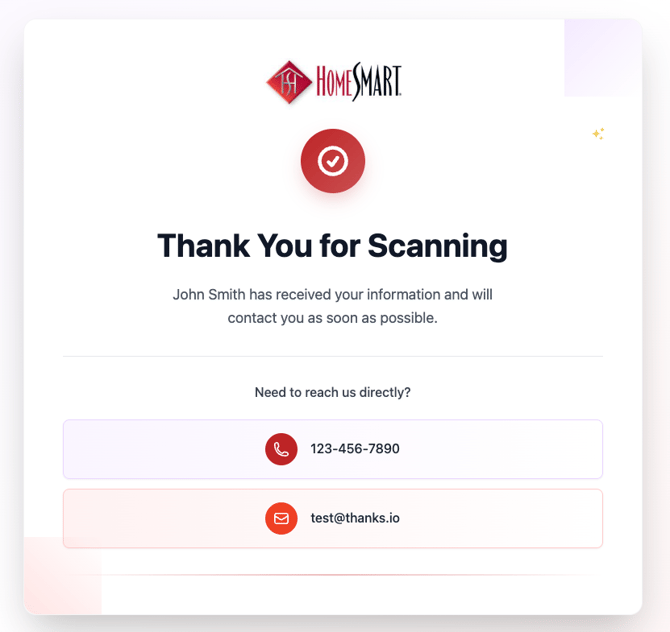
If you choose this option, make sure your contact details are up to date in your Account Info settings so recipients see the correct information. It will appear similar to this but with your information.
Option 3: Attach a QR Code to a Mailing List
You can assign a default QR code URL to an entire mailing list.
When you do this, every recipient on that list will automatically receive a QR code unless a different one is specified in the mailer.
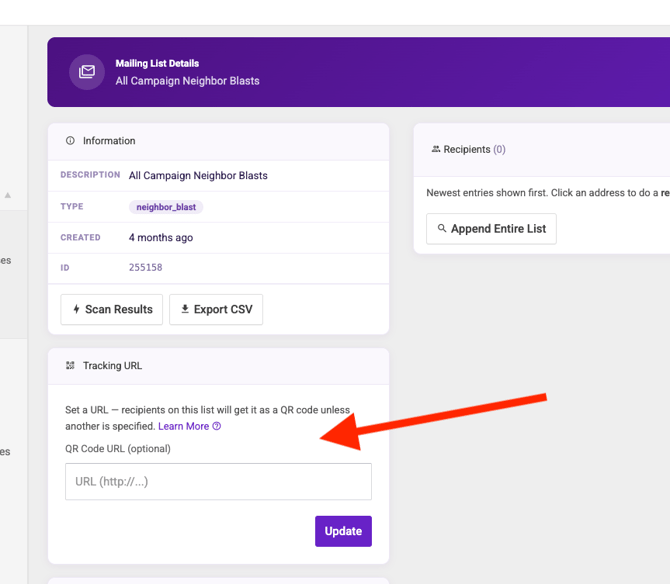
- Go to your Mailing List Details
- Locate the Tracking URL / QR Code URL section
- Enter your URL and click Update
👉 For a full step-by-step guide, see:
https://help.thanks.io/how-to-add/send-a-qr-to-an-entire-mailing-list
Pro Tip
If you’re running multiple campaigns, consider using different URLs (or landing pages) for each one. This makes it easier to track performance and optimize your results.