Dynamic Images (Street View)
What it is
Dynamic images personalize the visual design of each mailer with images unique to that recipient or property. Instead of the same static design going to everyone, each piece can show a photo of the recipient's house, the subject property you're marketing, or product images from their purchase history.
Three options:
- Google Street View - automatically includes a photo of the recipient's property on the mailer
- Target Property - for Neighbor Blast and Absentee Owner Mode: shows the target property, not the recipient's property
- Hyper-Personalization - include recipient-specific images (product photos, specific house, any image URL) via your CRM or API
Adding Street View to a creative's front
Street View designs are available for 4x6 and 6x9 postcards.
- Go to Creatives in the sidebar and click New creative (or click an existing 4x6 or 6x9 postcard creative to edit it).
- Choose Build it yourself, then the 4x6 Postcard or 6x9 Postcard mail piece.
- On the Front step, click Street View design.
- Give the design a name and pick a Layout.
- Under Background, choose Street View.
- Under Your words, add a header and sub-header - for example:
- Header: "Just Listed on Your Street"
- Sub-header: "See what's happening in your neighborhood."
- Click Save design, then continue through the message and save the creative.
The Background section also offers Map View (a satellite view of the recipient's address) and Your image (the same image on every card, or a per-recipient image from a custom field). See Creating a Creative for every field in the editor.
Applying an AI effect to the Street View background
The Street View background can be re-rendered in an illustrated, seasonal, curb-appeal, or home-improvement style. With Street View selected, click Add an AI effect to open the picker, pick an effect, and confirm the per-mailer add-on fee. Effects are available on every plan and carry a flat per-recipient add-on. See Street View AI Effects for the full list and how each category behaves.
Subject Property: when to use it
Use Subject Property when:
- You're running a Neighbor Blast campaign for a Just Listed / Just Sold property - neighbors see the listing, not their own house
- You're targeting absentee owners - the mailer shows the investment property you want them to sell
Do NOT use Subject Property on a standard Days After Added campaign unless the target property is intentionally different from the recipient's address.
Showing a different address in Google Street View or Map View
By default, the Street View or Map View image uses the recipient's own mailing address. If you want the Google image to show a different address (for example, an absentee owner's investment property), map the Absentee Address field in the recipient record to the address you want shown. You can set this field on CSV upload, via Zapier, or through the API.
Hyper-Personalization
Hyper-Personalization is configured per-send via the API or via CRM integrations. Pass an image URL for each recipient as a custom field and reference it (for example, ~CUSTOM1~) in a Street View design's image fields. See API documentation for field details.
Dynamic Image Template variable reference
Street View designs (dynamic image templates) use ~VARIABLE~ (tilde) syntax in the header, sub-header, QR code URL, background image, logo, and overlay image fields. In the editor, click in a field and pick a tag from the palette beside the preview to insert it.
Here is an example of how the variables appear in a dynamic card:
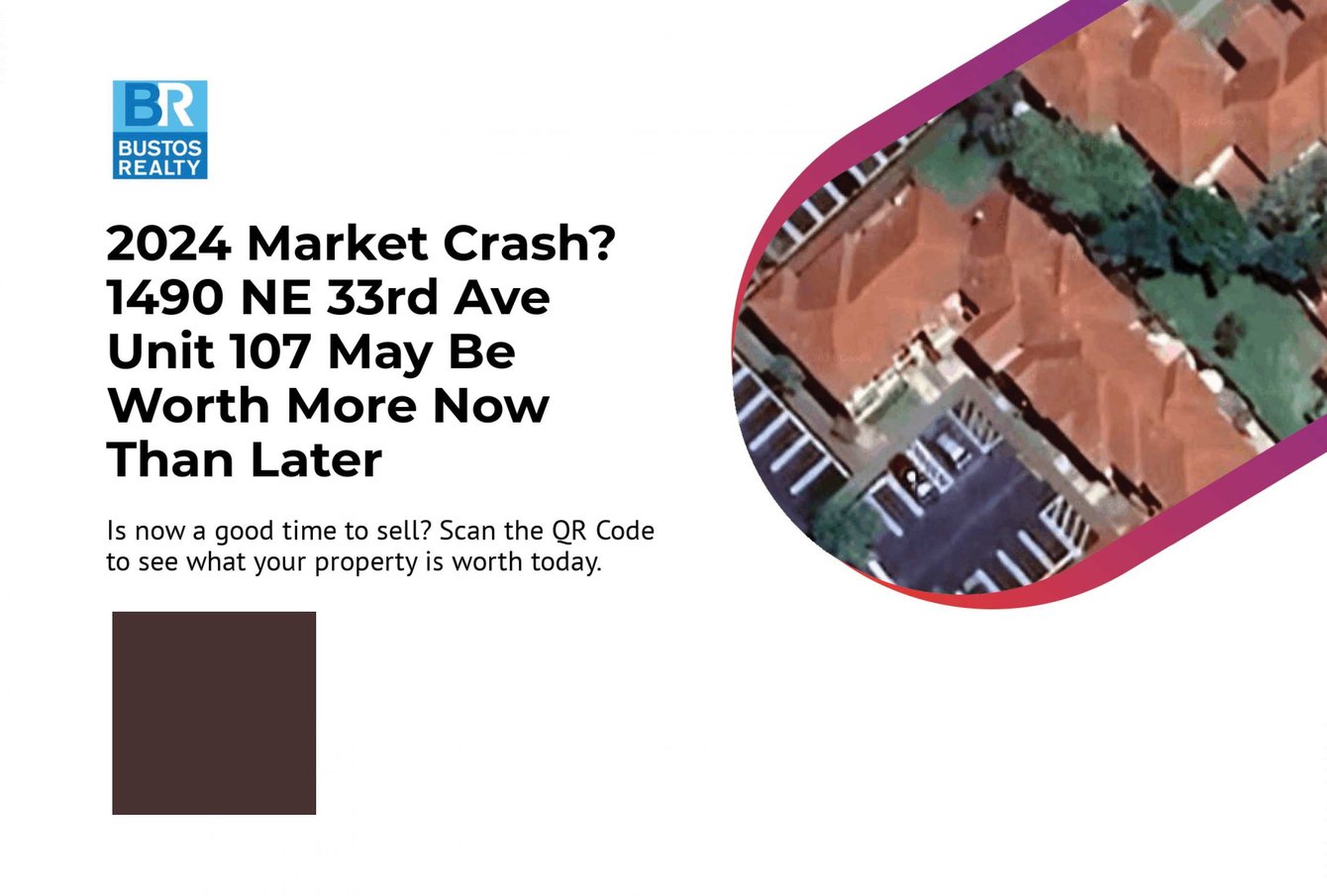
And the corresponding template settings:
Recipient variables
| Variable | What it inserts |
|---|---|
~FULL_NAME~ | Recipient's full name |
~FIRST_NAME~ | Recipient's first name |
~LAST_NAME~ | Recipient's last name |
~COMPANY~ | Recipient's company name |
~ADDRESS~ | Street address line 1 |
~ADDRESS2~ | Address line 2 |
~CITY~ | City |
~STATE~ | State |
~ZIP~ | ZIP code |
~EMAIL~ | Recipient's email address |
~PHONE~ | Recipient's phone number |
~CUSTOM1~-~CUSTOM10~ | Custom fields from the recipient record |
~ABSENTEE_STREET~ | The absentee/target property address (Neighbor Blast and Absentee Owner Mode) |
~MESSAGE_QR~ | Uses the same QR code URL as the creative's message (the Use message QR button) |
Custom field image URLs in Street View designs
In a Street View design's image URL fields, you can use recipient custom field tokens as image sources.
Supported fields:
- Background image URL (with Your image selected)
- Logo URL
- Overlay image URL
Supported tokens:
~CUSTOM1~through~CUSTOM10~
At send time, each token resolves to that recipient's custom field value. If the value is a valid image URL (PNG or JPG), it is rendered in the final generated image.
What this enables:
- Recipient-specific background images
- Recipient-specific logos or brand images
- Recipient-specific overlay graphics
- Flexible templates that source image assets from recipient data instead of hardcoded URLs
How it works:
- The Street View design editor accepts custom field tokens in image URL fields.
- Preview rendering shows a placeholder image when a custom field token is used as an image source.
- At send time, the system resolves each recipient's custom field value into the final image URL.
- If the custom field is missing or not a valid image URL, that recipient is skipped and the order is flagged with an error.
VisitorView variables
These variables are populated when a recipient is captured via the thanks.io website tracking script. They carry data about the web page the visitor came from.
| Variable | What it inserts |
|---|---|
~VV_TITLE~ | Title of the page that captured the recipient |
~VV_IMAGE~ | Meta/OG image from the page that captured the recipient |
~VV_LAST_URL~ | URL of the page that captured the recipient |
Tips & best practices
- For real estate, Street View on the recipient's property makes the mailer feel unmistakably personal - recipients recognize their own house immediately.
- Street View quality varies by address. Rural or newer developments may have lower-resolution imagery. Preview with a sample address before a large campaign.
- Hyper-Personalization is most powerful combined with CRM triggers (e.g., send a product-image postcard the day after a cart abandonment).
- VV_ variables are only populated for recipients captured by the VisitorView tracking script. They will be blank for recipients added via CSV or manually.
Limits & gotchas
- Street View uses Google Street View imagery - coverage and recency depend on Google's data.
- Dynamic images add processing time per piece.